Choose the Source Image
Drop, paste, or select the panorama, design, photo, or graphic you want people to swipe through.

Turn one wide image into 2 to 10 connected slides. Preview the framing, keep the sequence clear, and download a numbered ZIP.
3 slides · 4:5 → Recommended canvas: 3240 × 1350 px
Drag the source preview or use the position sliders and Zoom to refine the crop.
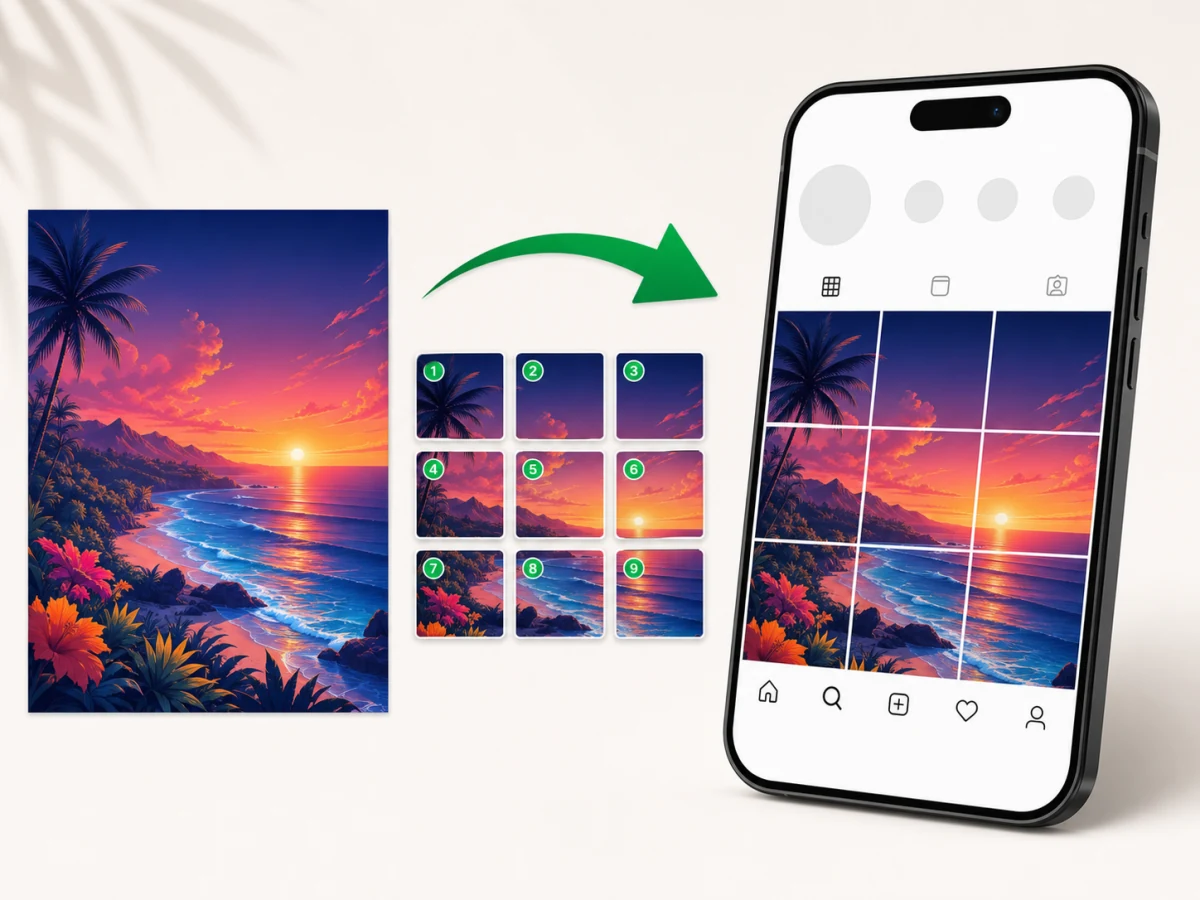
This page opens the shared Image Splitter engine in Instagram Carousel mode, so the task settings are ready before you choose an image.
Create 2 to 10 connected slides in left-to-right posting order.
Choose 1:1 square, 4:5 portrait, or 3:4 tall output.
Crop to fill, or fit the whole image against a selected background.
Download PNG, JPG, or WebP files individually or together in a ZIP.
Start with the complete visual. The tool creates one continuous canvas, divides it evenly, and keeps the slide files in publishing order.
Drop, paste, or select the panorama, design, photo, or graphic you want people to swipe through.
Choose 2 to 10 slides, then select one ratio for the complete carousel.
Drag the preview, adjust the crop position and zoom, or switch to a background fit.
Generate the slides and download files labeled in left-to-right posting order.
Use crop mode when every slide should be fully covered. Adjust horizontal and vertical focus, then zoom only when the composition needs it.
Use background fit when no source content should be cut away. The complete image stays visible and unused canvas space gets the color you choose.
Check both the source framing and the slide sequence. A clean split still needs readable text, safe focal points, and a sensible first slide.
Files use zero-padded names such as carousel-01 and carousel-02, so sorting by name preserves the intended sequence.
Every slide in the package uses the ratio and width selected in the tool. This prevents a mixed canvas from disrupting the swipe sequence.
The ZIP includes a text guide with the selected layout, output size, file order, and a reminder to publish from first to last.
The source image is decoded and split with Canvas on your device. The tool does not send the image contents to an image-processing server.
The core splitting workflow works without sign-up, and the exported slides do not receive an Image Splitter watermark.
This page uses the same tested splitting engine as the main Image Splitter. The route changes the starting mode and the guidance, not the image-processing core.
Use this Instagram Carousel Splitter checklist after the layout looks correct but before you publish the files. It catches sequence, framing, and readability problems that an equal mathematical split cannot decide for you.
Read the connected image from the first slide to the last. The opening slide should make sense on its own, while each following slide should reward the swipe. Make sure the final slide does not end on an accidental fragment of text, a cut face, or an isolated design element.
Review every boundary in the source preview. Keep headlines, logos, faces, and product details away from the cut lines unless the split is deliberate. If the crop removes important content, adjust the focal position and zoom, or switch to Fit with background to preserve the whole image.
Every file in one carousel package should use the same ratio. Choose 1:1, 4:5, or 3:4 before export, then confirm whether the 1080-pixel preset or original source width is more appropriate for the design. The preview and resolution notice help identify a source that is too small for the selected layout.
The Instagram Carousel Splitter names files from carousel-01 onward and includes a posting guide in the ZIP. Sort by file name, verify the first and last slide, and publish in that numbered order. Keep the original source image and ZIP together so the sequence can be recreated without guessing.
Choose an image, set 2 to 10 slides, select a ratio, review crop or background fit, and create the numbered files.
The tool offers 1:1 square, 4:5 portrait, and 3:4 tall slides. Every slide in one export uses the same ratio.
Yes. Choose Fit with background to keep the entire source image and fill unused space with a color you select.
No. The image is decoded, previewed, and split locally in your browser.
Yes. Download individual slides or a ZIP with numbered images and a posting guide.
This page starts in Carousel mode for left-to-right slides. Use the Image Splitter homepage and Generic Split for an equal 3x3 profile-grid starting point.