Choose the Source Image
Drop, paste, or select a JPG, PNG, WebP, GIF, AVIF, or another browser-supported image.

Choose rows and columns, preview every equal cut, and download the resulting image parts without uploading your file.
3 slides · 4:5 → Recommended canvas: 3240 × 1350 px
Drag the source preview or use the position sliders and Zoom to refine the crop.
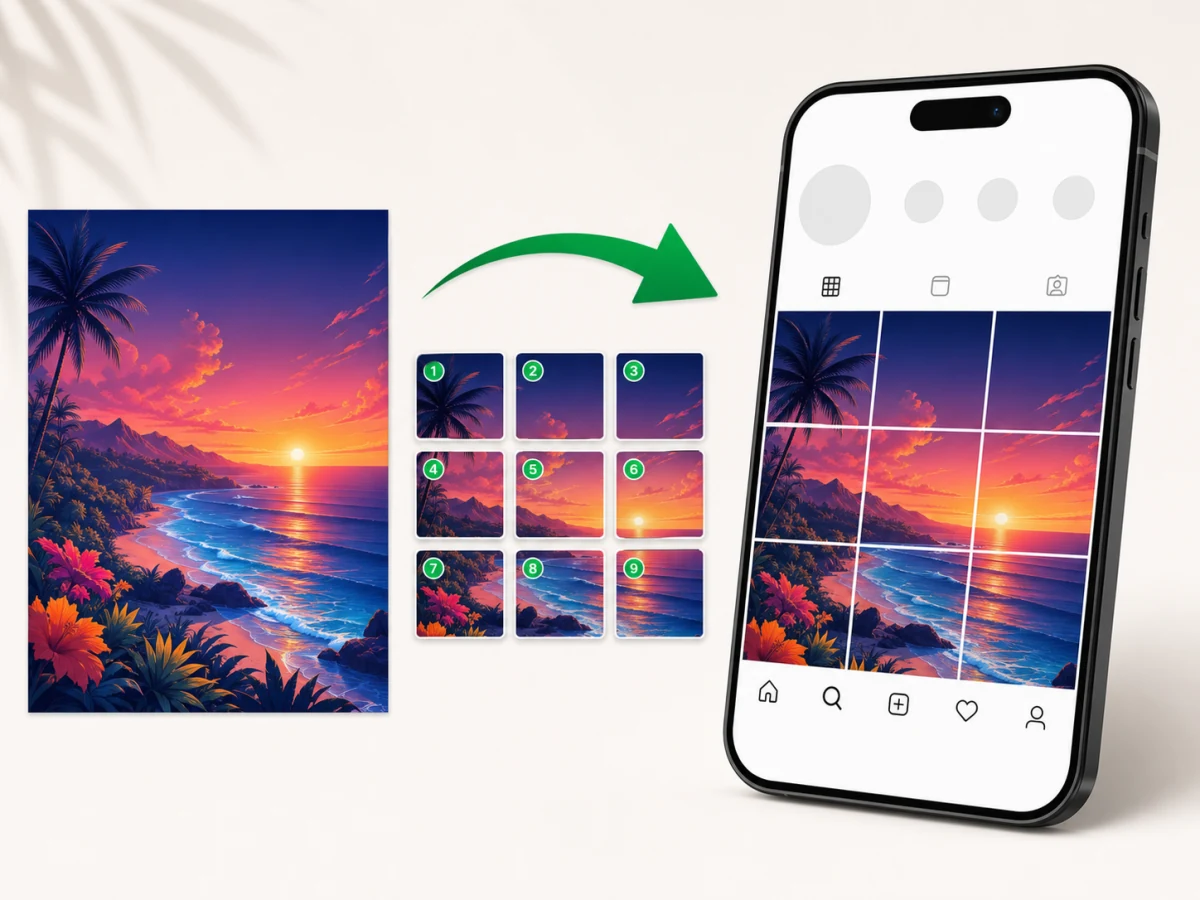
Use this page to split an image into equal parts with a preset or a custom row and column count. The tool, preview, and download controls are all on the same page.
The 2x2 preset creates four equal grid pieces from one source image.
Choose 1 to 12 rows and 1 to 12 columns for a custom equal split.
Download PNG, JPG, or WebP pieces individually, or export all files in a ZIP.
The image stays on your device while the browser creates the pieces.
To split an image into equal parts means dividing the source width and height with consistent row and column boundaries. A 2x2 layout creates four pieces, a 3x3 layout creates nine, and a 1x4 layout creates four side-by-side pieces.
The splitter calculates the cut plan from the original pixel dimensions. It does not resize the full source before splitting. This keeps the complete image content and produces predictable boundaries for web assets, class materials, puzzles, print planning, product boards, and social content.
When a source dimension cannot be divided evenly, the edge pieces can differ by one pixel. That is more accurate than dropping a remainder or stretching the image to force an artificial size.
Choose the image, set the number of rows and columns, inspect the cut lines, and create the pieces. The full workflow runs locally in your browser.
Drop, paste, or select a JPG, PNG, WebP, GIF, AVIF, or another browser-supported image.
Pick 2x2, 3x3, 4x4, or open Custom for the exact layout your project requires.
Check where the equal boundaries cross text, faces, diagrams, or other important content.
Generate every piece, then download individual files or save the complete set as a ZIP.
Use one row and two or more columns. A 1x2 layout makes two side-by-side parts. A 1x3 layout makes three side-by-side parts. Each additional column adds another vertical cut across the image width.
Use two or more rows and one column. A 2x1 layout makes a top and bottom part. A 3x1 layout makes three stacked parts. Each additional row adds another horizontal cut from left to right.
Choose 2x2 for four equal grid pieces, 1x4 for four side-by-side pieces, or 4x1 for four stacked pieces. Open Rows and Columns when the required layout is not shown as a preset.
Choose the 3x3 preset. For a profile-grid task with nine tiles already selected, open the Instagram Grid Maker.
The cut plan covers the full image from the first pixel to the last. No edge strip is silently discarded when the dimensions leave a remainder.
Generic split files use row and column positions in their names. This makes it easier to reassemble a grid, sort a ZIP, or map each tile to a planned layout.
An equal mathematical cut can still cross a face, label, or focal point. Review the overlay and edit the source composition when content must stay inside one piece.
PNG is a strong default for text, diagrams, UI captures, logos, and illustrations because the export remains lossless.
JPG and WebP can create smaller files for photographs. Use the quality control to balance file size against visible compression.
The browser decodes and splits the source with Canvas. The image contents, tile files, and original file name are not sent to an image-processing server.
Prepare equal tiles for component previews, product boards, comparison layouts, galleries, and content-management systems that expect separate files.
Create consistent pieces for classroom exercises, printable puzzles, sequencing activities, visual analysis, and worksheet layouts.
Divide a campaign visual into equal source pieces, then use platform-specific previews before publishing. For connected swipe slides, open the Instagram Carousel Splitter.
Open Image Splitter Online whenever you need the broad grid workflow, including layouts beyond the starting 2x2 preset.
Choose an image, select a preset or enter the rows and columns, check the preview, and create the tiles. Download each part separately or export every piece together in a ZIP.
Use one row and two or more columns. Each extra column adds another vertical cut and creates equal side-by-side pieces.
Use two or more rows and one column. Each extra row adds another horizontal cut and creates equal stacked pieces.
Yes. Choose 2x2 for four grid pieces, 1x4 for four side-by-side parts, or 4x1 for four stacked parts.
The splitter preserves every source pixel. Edge tiles can differ by one pixel instead of discarding or stretching part of the image.
No. The image is decoded, previewed, and divided locally in your browser.