
Split Image in Half
Two equal pieces. Choose left/right or top/bottom, check the cut, and download both halves.
One image. Two clean halves.
Drop an image here, choose a file, or try the two-page sample.
Choose the cut
Your image stays on this device. Try a sample to explore the tool.
Your halves
How to cut an image in half
- Choose your imageUse a JPG, PNG or WebP, or try our two-page sample.
- Choose the directionLeft / right makes side-by-side pieces. Top / bottom makes stacked pieces.
- Download both halvesCreate the pieces, check their sizes, and save a ZIP or individual files.
Separate a two-page scan
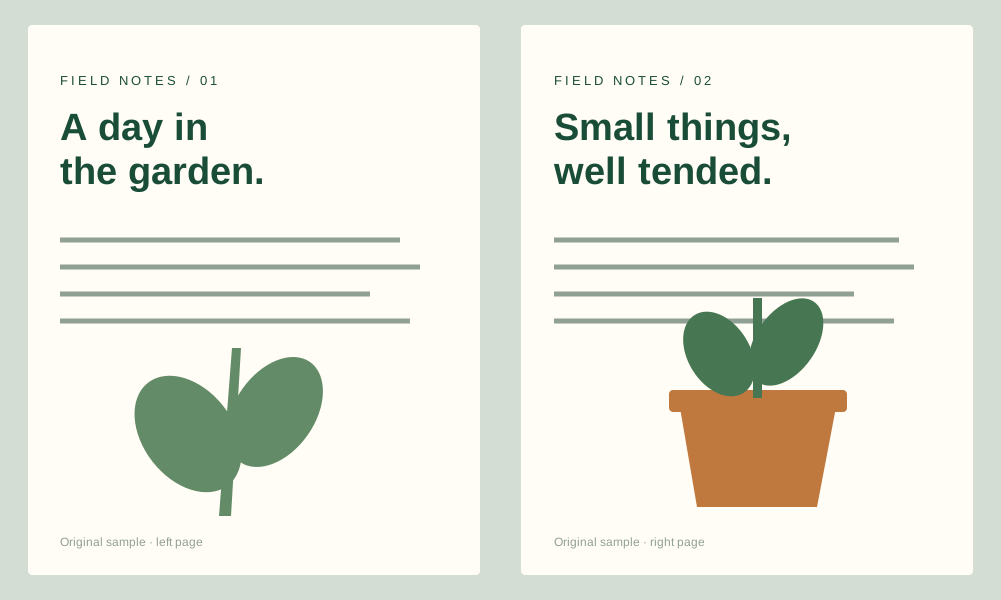
This illustrated sample is two pages in one image. A centered left/right cut gives each page its own file without changing its pixel size. The same workflow works for paired screenshots or a wide photo.
Keep every pixel
This tool cuts exactly in the middle. If the image width or height is odd, one half has one extra pixel. You can check each output size before downloading. For more than two pieces, use the equal-parts tool.
Split Image in Half FAQ
How do I split an image horizontally?
Choose Top / bottom. The cut line runs across the center and creates two stacked images.
Does splitting reduce the resolution?
Each half keeps its original source pixels. PNG is lossless; JPG and WebP use the selected compression quality.
What happens with an odd number of pixels?
The extra pixel is kept in one half, so a 1001 px image becomes 501 px and 500 px. Nothing is discarded or stretched.
Can I move the cut line?
This page makes two centered halves. It does not support a movable or off-center cut.
Are images uploaded?
No. Image decoding, preview, splitting and ZIP creation happen locally in this browser.